Find what you need in our searchable FAQ.
362 views | 1 Vote this question as useful. 1 Vote this question as not useful. | Last updated on Jul 28, 2026 Library Room booking
Book study rooms using Outlook (desktop version):
To book a meeting room in Outlook:
Access Room Finder: Click on "Rooms..." or "Room Finder" (the location field may also have a drop-down arrow to reveal more options).  Locate and Select Room: Use the Room Finder to browse available rooms, search by name, or filter by location, capacity, or features.
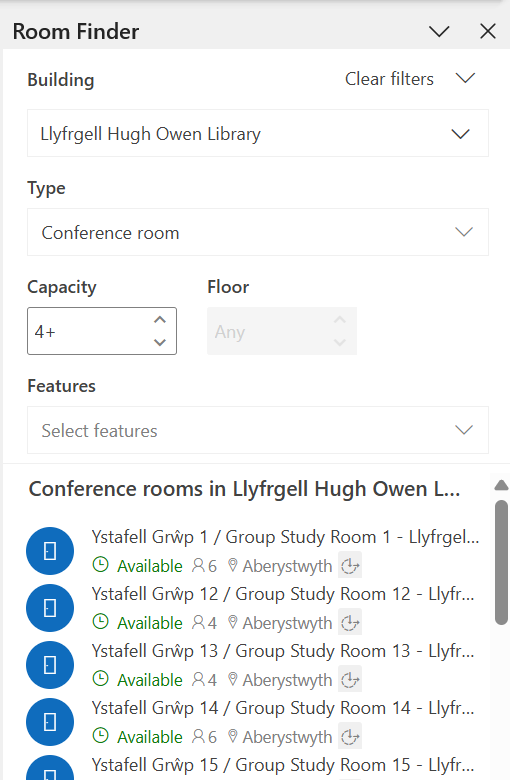
Add to Meeting: Once you've chosen a room, select it and click "OK" to add it to your meeting request.
Send the Invite: Review all meeting details and click "Send" to invite attendees and book the room.
You will receive confirmation via e-mail that the room has been booked.
Cancel a Room booking in Outlook:
To ensure fairness of use, bookings should be made: once a day for a maximum of four hours up to one week in advance.